
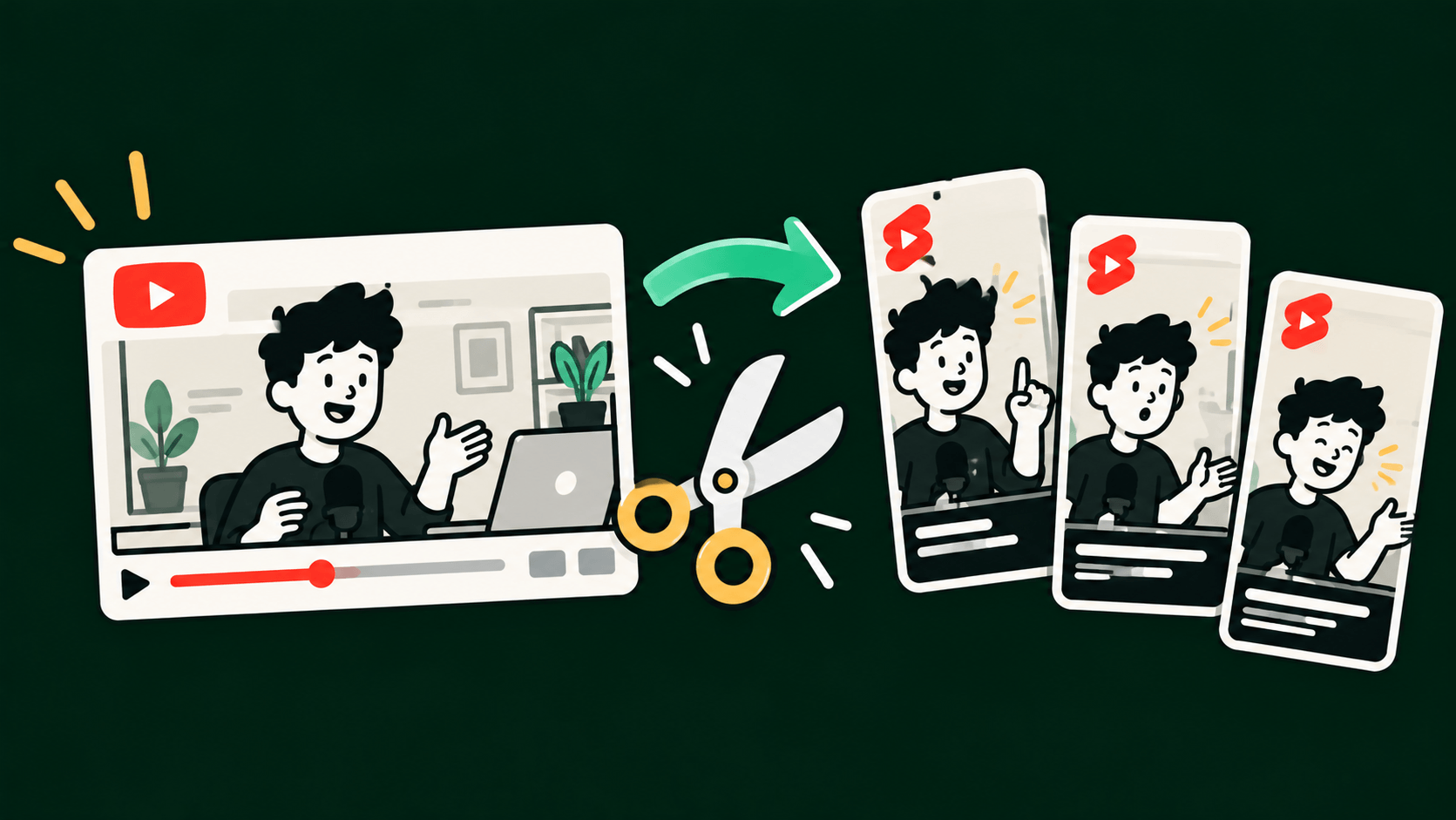
A one-hour video usually hides a dozen good short ones. There's the funny tangent, the sharp bit of advice, the answer people keep asking about. The trouble is finding them and turning each into something you can post.
Doing it by hand is slow. You scrub through the footage, pick the moments, crop everything to a vertical frame, add captions, and export each clip one at a time. For a single video that's an afternoon, which is why most long videos never get turned into clips at all. And short clips are exactly how a lot of people find you in the first place, on TikTok, Instagram Reels, and YouTube Shorts.
Here's the quicker way.
Step 1: Pick the right long video
This works best on videos where people are talking: podcasts, interviews, webinars, talks, live streams, and tutorials. Clear audio helps a lot, and so does having a few moments that are strong on their own, like a good story, a bold opinion, or a useful tip. If the video is mostly slow build-up with one point at the very end, there's less to pull out.
Step 2: Give it to OpusClip
This is where we'd use OpusClip. You can upload the video file, or paste a link to it. Pasting a link from platforms like YouTube, Vimeo, Zoom, and Google Drive is a Pro plan feature, so on the free plan you'll upload the file instead.
Open OpusClip, add your video, and let it process. You don't have to pick anything yet.

OpusClip
OpusClip takes a long video, from a link or an upload, finds the best moments, and turns them into short vertical clips with captions, ready to post to TikTok, Instagram, and YouTube Shorts.
Visit OpusClipStep 3: Let it find the best moments
OpusClip analyzes the video and picks out the strongest moments. It cuts them into short clips, adds captions, and reframes each one for a vertical screen, keeping the speaker in the middle of the frame as they move around.
If you already know what you want, you can ask for it in plain words instead, like the part where a guest talks about pricing, and it will look for that moment.
Step 4: Check each clip and tweak it
Treat what you get as a strong first draft, not a finished product. Watch each clip and check that it starts and ends cleanly and still makes sense on its own, because the AI sometimes trims a thought a little early or drops the setup. Read the captions too, since names and technical terms are where they slip up.
From there you can trim, change the captions, and apply your brand's fonts, colors, logo, and intro, so every clip looks like it belongs together. Don't feel you need to keep all of them. A handful of good clips beats forty so-so ones.
Step 5: Download or post
Download your favorites, or post them straight to YouTube Shorts, TikTok, and Instagram if you're on a paid plan. A tip for the free plan: clips carry a watermark on the caption styles and are only kept for three days, so download what you want quickly. The paid plans remove the watermark.